











Firmware Upgrade
Firmware Upgrade
ToolkitRC Class Time!
The upgrading firmware method has been improved!!!
Important Tips for upgrade:
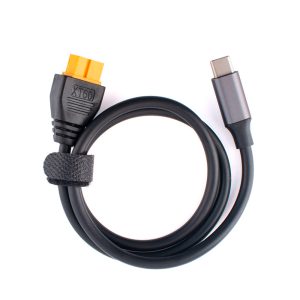
- Pls use the original USB cable we attached in box, Not all USB cables have data transfer capabilities
2.Suggest to use Windows system PC for upgrading
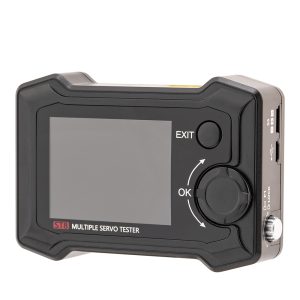
3.Press and Hold exit button, at same time contact USB to PC
4 thoughts on “Firmware Upgrade”
I have a q6 AC charger with version 1.03 and I was going to upgrade to the latest version but when I plug in the USB cable it does not show up on the PC at all. There’s no tone from the USB device being plugged in. I’m using a USB-a plugged into my PC USB c plug into the charger. Is there some kind of trick that I’m not getting? I have the charger turned on and holding the exit button (bottom left button) while plugging in the USB cable.
Hello,The Q6AC uses a USB-A port; since USB-C ports are not backward compatible with USB-A ports, you must use a USB-A to USB-A cable.
this is not for the mc8
The MC8 upgrade requires an A-to-A data cable. Since you need to enter data mode before the port pins are powered, you must insert the cable into the USB port quickly. If it doesn’t work the first time, try again a few times.